
AI Video Editing for Social Media: Turn One Recording Into a Week of Captioned Clips
You already have the footage. AI video editing for social media turns one recording into captioned clips sized for every platform, so a single shoot feeds a whole week of posts.
 AivoPass Editorial TeamReviewed by our agent setup specialists
Updated
Reading time5 min

AI video editing for social media turns raw footage into short, captioned clips sized for each platform. The Video Edit Desk cuts clips from your own notes, burns in readable captions, exports vertical, square and wide versions and never overwrites your original files. You choose the moments; it does the repetitive editing.
Most businesses are sitting on more video than they realise: a webinar from last month, a product demo, a conference talk, a podcast episode. The problem is never the footage; it is the hours of trimming, captioning and resizing needed before any of it can go on social media. AI video editing for social media removes that bottleneck by turning one recording into many short, captioned clips that fit every platform.
This how-to guide walks through a simple repurposing workflow, a template for the notes that guide the cuts, a sample week of posts from one recording and the mistakes that quietly hurt short-form reach. Along the way you will see how the Video Edit Desk handles the repetitive parts while you keep the creative calls.
See the Video Edit Desk Done-for-you setup · You approve every action
What is AI video editing for social media?
AI video editing for social media is the process of turning longer footage into short clips that are ready to post: cut to the strongest moments, captioned so they work with the sound off, and exported in the vertical, square and wide shapes each platform prefers. With the Video Edit Desk, your notes decide what gets cut, and your original files stay untouched.
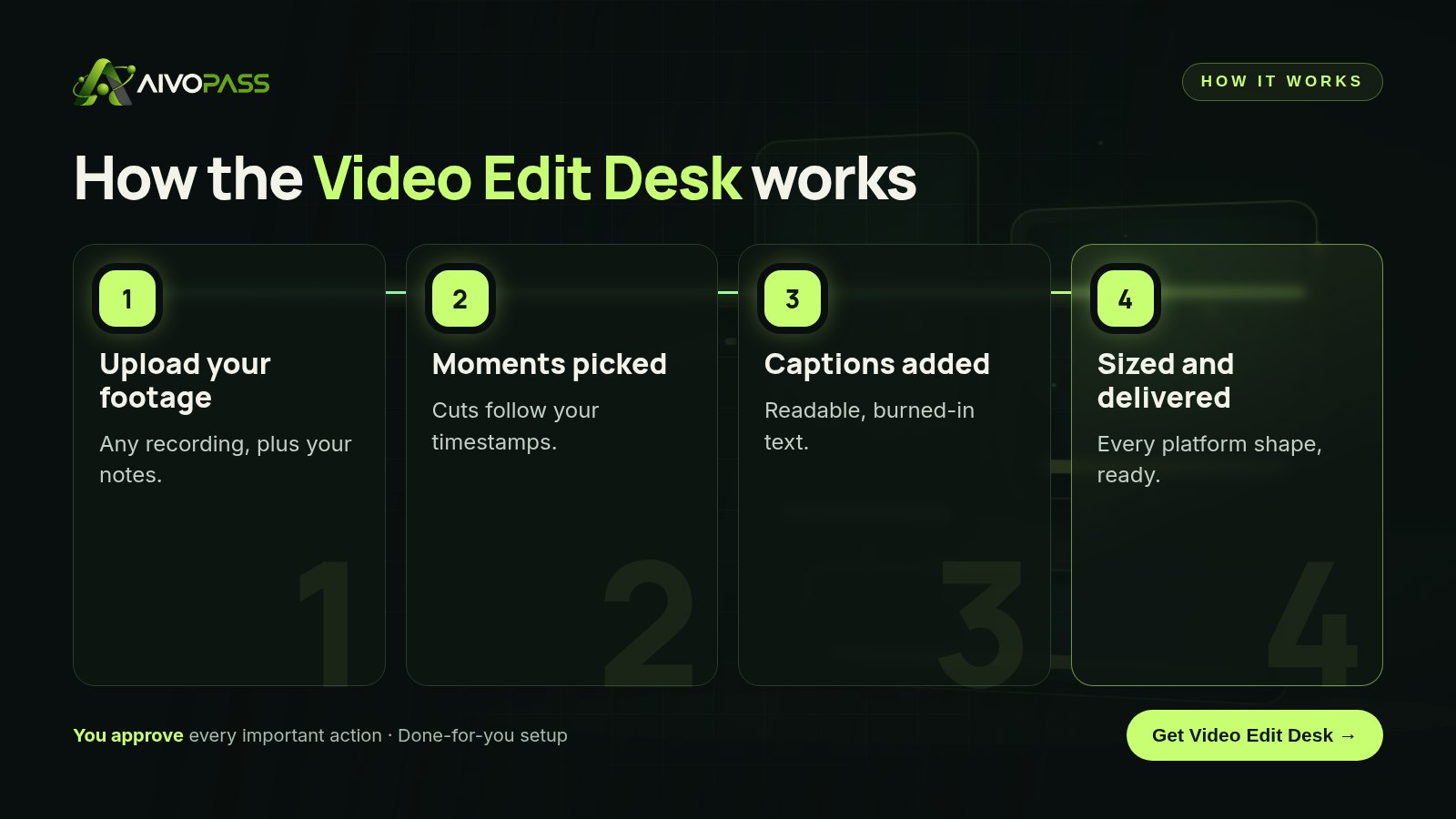
How the Video Edit Desk works
- Cuts clips from your notes: share timestamps or topics and it builds the clips around them.
- Burned-in captions: readable text baked into each clip, so viewers scrolling without sound still follow along.
- Sizes for every platform: vertical for short-form feeds, square for many timelines, wide for websites and presentations.
- Original files untouched: every clip is a fresh export; the source recording is never overwritten.
Before and after
| Task | Editing by hand | With the Video Edit Desk |
|---|---|---|
| Finding the moments | Scrubbing through the whole file | Cuts follow your notes |
| Captions | Typed or corrected line by line | Burned in automatically |
| Platform sizes | Re-framed one export at a time | All shapes delivered together |
| Output per recording | One or two clips, if time allows | A batch of clips for the week |
| Source files | Risk of saving over the original | Original never overwritten |

Step by step: from one recording to a week of posts
1. Write simple shot notes
You do not need an editing brief. A short list is enough: the timestamp or topic, the point being made and where you plan to post it. For example, “12:40 to 13:30, the three questions every new client asks, short-form feed” tells the editor exactly what matters.
2. Pick one idea per clip
Short clips work best when they make one point. A forty-minute webinar often contains eight to twelve of these moments: a tip, a quick story, a surprising number, an answer to a common question.
3. Let captions do the heavy lifting
Many people watch social video without sound, especially on transit or at work. Burned-in captions keep your message intact. If you publish in English and French, note which language each clip is in so captions match what is spoken.
4. Spread the clips across the week
| Day | Clip idea from one webinar | Best shape |
|---|---|---|
| Monday | The biggest mistake customers make | Vertical |
| Tuesday | A quick tip with a before-and-after | Square |
| Wednesday | Answer to the most common question | Vertical |
| Thursday | A short customer-style scenario | Wide, for your website |
| Friday | One-minute summary of the full session | Vertical |
Who it is for
Creators and podcasters
A podcaster in Montreal records a weekly interview. Instead of posting one link and hoping, she sends timestamps for her four favourite moments and gets captioned clips for every platform the same week.
Brands and small marketing teams
A home-renovation company in Calgary films short walkthroughs on site. The raw footage used to sit on a phone. Now each walkthrough becomes a set of clips for social feeds and a wide version for the company website.
Social media managers juggling clients
A freelancer in Halifax manages social accounts for three local businesses. Handing off the cutting, captions and resizing frees her time for strategy, scheduling and replying to comments.
Results to expect
These figures are typical estimates, not guarantees. Results depend on your footage, your notes, how often you post and your audience.
Mistakes that quietly kill short-form reach
- Starting slow. If the first seconds are an introduction, viewers scroll past. Cut straight to the point.
- No captions. A clip that only works with sound loses a large share of viewers.
- Wrong shape. A wide video in a vertical feed looks small and gets ignored.
- Too many ideas in one clip. One clip, one message.
- Posting everything on one day. Spread clips out so each one gets attention.
Safety and control
- Your original footage is never overwritten or deleted.
- It works only with the files you upload.
- It never publishes to your accounts; you decide what goes live.
- You review every clip and can request changes.
- Access can be removed whenever you choose.
Video Edit Desk vs alternatives
| Option | Speed | Captions and sizes | Your time needed |
|---|---|---|---|
| Editing it yourself | Slow, hours per video | Manual, easy to skip | High |
| Hiring a freelance editor | Depends on their schedule | Usually yes | Briefing and back-and-forth |
| Basic auto-clip apps | Fast | Often generic picks | Lots of fixing |
| Video Edit Desk | Fast and consistent | Every clip, every platform | Just your notes and review |
How setup works
- Choose the Video Edit Desk and check out securely.
- Tell us the platforms you post on, your caption style and how you will share footage.
- We connect your upload folder and run a test batch from one recording.
- You review the clips, request tweaks and you are live, usually within a few business days.
Related agents
Pair it with agents that edit talking-head videos, find highlights or create stills and thumbnails. Browse all AI marketing agents or read more marketing guides.
The bottom line
Good footage deserves more than one post. AI video editing for social media turns each recording into a steady stream of captioned, correctly sized clips, without hours at the editing timeline. You choose the moments, approve the results and keep your originals safe.
Get the Video Edit Desk Captions included · Originals never overwritten
Frequently asked questions
What is AI video editing for social media?
It is an editing workflow that turns longer footage into short clips for social platforms. The Video Edit Desk cuts the moments you choose, adds burned-in captions and exports versions sized for each platform.
Will it change or delete my original video?
No. Your original files are never overwritten. Every clip is a new export, so you can always go back to the source.
What do I need to provide?
Your video files and short notes on the moments you want, such as timestamps or topics. Clear notes give the best cuts.
Does it post the clips for me?
No. You receive finished clips and decide where and when to publish them. Nothing goes live without you.
Who is it best for?
Creators, brands and social media teams who record regularly, such as podcasts, webinars, interviews, product demos or event talks, and want more posts from the same footage.
See Video Edit Desk in action.
Turns uploaded footage into cut clips with burned-in captions and exports sized for every platform. Works from your notes and never overwrites the original.
We are the people who set up, connect and support AivoPass agents for businesses across Canada and beyond. Every guide is written from real setup work, reviewed by our specialists and updated when an agent changes.
- ✓ Done-for-you setup
- ✓ You approve every important action
- ✓ Secure PayPal checkout
- ✓ Built for Canadian businesses


